How to convert YouTube video to MP3 is the most popular question I can meet on the internet. People always ask such question because they want to enjoy the song from YouTube and without the low quality video. Honestly it is not a big deal but firstly you need to know something.
Most videos on YouTube are FLV format, so actually you need a FLV to MP3 converter to help you.
As you do not want the video, so you need find a converter which can get rid of the video.
The converter would better be free.
If you agree with the above three options, I recommend you www.convertdirect.com. This website supplies free service of converting online FLV/YouTube to AVI/MP3/WMV/3GP/MP4/iPod /Zune /PSP. And the steps are simple.
Press the Enter button on your keyboard, you can see this interface.
Step2. Insert the YouTube video’s URL.
This website support convert on-line FLV videos, so you can convert the video when you were watching it without download it.
Insert URL here:
If you want to download the FLV you also can download it from this website.
Insert the video’s URL and click Download button.
Step3. Convert your FLV to MP3.
Change to Convert the online video section.
You see the Select the output format section? In the drop-down list choose MP3(Audio only) and enter your email in the right input box. Click Submit and wait for some time you can get a download link with an email in your email box.
The software used on Mac OS is more and more popular as the development of the Mac Operating System. Many a company developed the program used for Mac. I recommend you a program called iSkysoft iMedia Converter for Mac.
What can this software do:
iSkysoft iMedia Converter for Mac is designed to edit your DVD and video movies. This all-in-one DVD Ripper for Mac and Video Converter for Mac allows you to trim movie length, crop video area, set video effects, real-time preview, and even add watermark onto your movies. You can now easily put your DVDs and video on your mobile devices and enjoy them anywhere.
The input and output video formats:
Input video formats:FLV, MOV, AVI, M2TS, MKV, MOD, WMV, ASF, MPEG, M4V, MP4, 3GP, 3G2, MPEG, TS/TP/TRP/M2TS (for HD Video), etc. ?Input audio formats: MP3, M4A, WAV, AAC, AC3, OGG, APE, MP2, MKA, etc.
Output video formats: MP4, MKV, MOV, M4V, AVI, FLV, 3GP, 3GPP, 3G2, MPG, ASF, VOB, etc.
Output audio formats: M4A, MP3, WAV, AC3, MKA, OGG, etc.
Now many people would like to convert YouTube videos (FLV files) to MP4 compatible with iPod. This software can also be regarded as the professional FLV to iPod converter on Mac. FLV is very popular video format which is used to deliver video over the Internet. Recently Adobe Company released the new Flash Player. It supports H.264 video and HE-AAC audio. Most video-sharing web sites use this kind of FLV file.
How to Convert FLV to iPod on Mac:
Download and install this professional FLV converter on Mac. Launch the program. You can see the main interface.
2. Load FLV files to the FLV converter.
Click Add Video to import FLV into the software.
3. Choose the output format and destination folder.
After importing FLV into the file list, you can preview with the right side preview window.
In Profile box, you can choose FLV as the output video format. Specify the output path in Output box.
SocialMedia, a company that specializes in advertising across social networks, has released a new form of advertising dubbed the “WOMI”, or Word of Mouth Impression. WOMI campaigns present visitors with ads asking them for some kind of input either though a multiple choice question or using a text field. SocialMedia then uses this input to customize ads which are shown to the user’s friends on the same social network.
For example, if an ad for Star Wars had a call-to-action asking if I was on the Light Side or Dark Side of the Force, it could take my response and then present my friends with an ad that said “Jason is on the Light Side, how about you?”. In turn, their responses are passed on to all of their friends, making this among the first kind of advertising with a viral element. This interaction makes the ads mini-social applications in and of themselves, and have proven to be very successful in trial campaigns.
Research firm Dynamic Logic found that over three months WOMI resulted in increased awareness, favorability, and purchases for the Fortune 500 company running the campaign. In fact, the campaign did so well that it placed among the top 20% of all social media campaigns ever analyzed by the firm, which has been in the business for nine years.
Sometimes trying out newer versions of Firefox, especially ones that are still in beta, comes at a cost. Since the version you’re running is so new, add-on developers haven’t had the chance to update their add-ons to work with the newer versions.
So this is when you stumble upon an add-on that conveys the following message to you: “This add-on is for older versions of Firefox”.
Fix Incompatible Add-ons
Since your sights are set on using Firefox extensions that keep telling you they’re incompatible with the version you have, and downgrading a version or two isn’t an option, now you can discover a nifty tool called Nightly Tester Tools.
Ironically this is a Firefox add-on that will help you make all other incompatible extensions compatible with the browser version you’re running.
What’s Next
The first step you need to take is to download Nightly Tester Tools here, if you haven’t already.
Next if you still have the extension that was disabled when you upgraded to a newer version of Firefox in your add-ons menu, then you will go to Tools/Add-ons and right-click on your disabled extension, then choose Override Compatibility.
Now it will ask you to confirm your selection by clicking Force Install.
The last step involves restarting Firefox to have your add-on fully working.
Bonus Features
Here you thought it was the end of this add-ons story but actually there are a few other features that this extension allows you to take full advantage of.
With Nightly Tester Tools you’re also able to take screenshots of any webpage and save them in JPEG format. You can easily restore tabs from a previous session if it just so happens that your PC froze and you didn’t have time to properly close your browser window.
Feel free to test all other Nightly Tester Tools features and let us know how you like them in a comment below!
Description: URL Snooper can identify URLs that are hidden behind javascript or activex scripts. It can be used to identify the URLs for streaming video and audio files so they can be downloaded locally.
URL Snooper is a so-called packing sniffing program. You need to tell it to start ’sniffing’ the network before you launch the browser page that contains the multimedia files you want to download. Here’s what you need to know about it:
* URL Snooper filters by multimedia sniffed URLs by default . If you’re looking for non-media URLs you can set it to ’show all’. * Can filter by keyword (or keywords). This is useful if you know something about the URL you’re trying to identify. For example, by filtering a specific domain name, you might increase your chances of honing in on the URL you want (assuming that the URL is from that domain name). * Allows user to set favorite URLs for quick access to these. * Allows user to define external application(s) that URL Snooper can default for streaming media downloads for quick access through the context menu.
Camino 2.0 Beta 2 contains several notable improvements, including Growl notifications for completed downloads, support for rearranging tabs by drag and drop, the ability to disable “Block Flash animation” on a per-site basis, tab overview, full content zoom, better support for Full Keyboard Access in the browser window, and a “Recently Closed Pages” menu. Camino 2.0 Beta 2 also has all of the improvements in version 1.9.0 of Mozilla’s Gecko rendering engine, leading to better performance with popular plug-ins and enhanced support for web standards.
Windows comes with a built in voice system, which I wanted to utilize recently. In this guide, you’ll learn a Visual Basic script that is only a few lines, which will give you a popup box you can use to type in anything you want your computer to say.
This script utilizes Microsoft’s speech API, which is installed on most Windows XP, Vista, and Seven installations; if this guide does not work, you do not have the SAPI.
Speak to me!
Copy the following text and paste it into Notepad
Dim message, sapi
message=InputBox("What do you want me to say?","Speak to Me")
Set sapi=CreateObject("sapi.spvoice")
sapi.Speak message
Save the file as ‘speak.vbs‘ (be sure to include the .vbs)
Now double click on speak.vbs and you’ll see an input box. Type in your message, press enter, and listen to your computer speaking.
If this Doesn’t Work…
You’ve probably run in to one of two problems:
1. Your browser displays the quotation marks differently. Go back to the Notepad file and replace all the quotes (”). Save the file and try again.
2. You do not have the SAPI installed on your computer, so this will not work (very unlikely as this comes with Windows, but if you have a custom/pirate version this may be the case.)
Flash videos are the most well know and welcomed contents online. You can’t deny its attractiveness to all young and old. Are you a Flash video fan? Do you know much about FLV format and Flash videos?
This article is to collect you some useful information to make you a true FLV fan.
10 Interesting Things You Can Do with FLV
1. Enjoy the Flash video (FLV) online
Ever since YouTube accepted Flash video as its main content, Flash video meet its booming time online. Tens of thousands of video-sharing sites came out one after another to catch the eyes of every visitor. On what site can you enjoy nice online Flash videos (FLV)?
2. Download the Flash video (FLV) to your computer
If you often surf online watching FLV videos, you will be annoyed by the buffering time at the beginning or in the process of playing while the internet speed is not so good. What can you do to solve this? It is very easy. Just download the FLV and enjoy the FLV on your own computer anytime you like.
There are several ways to download FLV files from these sites. Here I recommend two free ways.
First, download the FLV with a free FLV downloader, YouTube FLV Downloader. It downloads not only FLVs from YouTube, but also from Fox, blogTV, MySpace, Dailymotion, and other popular sites.
Just enable the capture icon in Capture section (it’s enabled by default); click in the page where the video is playing in your browser; the downloader will capture the URL automatically; right click on the URL in the program and select download; the FLV will be downloaded in a short time. You can batch download many FLV files at one time.
Just insert the FLV URL in the URL box, and click the download button.
3. Play FLV on your Computer
Once you downloaded the FLV to your computer, you can play the FLV with some free FLV players, such as Moyea FLV Player. You can play the FLV in full screen, enjoy the FLV in playlist, play FLV by its URL, or capture images in the FLV video. This player enables you to play not only normal FLV files, but also F4V files.
And also you can play the FLV in YouTube FLV Downloader Library or playlist.
4. Edit FLV to get your desired effect.
Actually, you can do far more than merely download and play FLV videos. You can edit the FLV video to get your desired length, and effects. Here you have some choices.
First, Moyea FLV Editor Lite Beta. It is totally free now. You can trim, cut, split FLV video and audio, replace FLV audio, and merge FLV. You can even compile an MP3 to FLV. The most attractive thing is that it perfectly keeps the original quality and exports really fast. You can even make your own MTV with it.
After the edit, you can export the FLV to your computer for further enjoying, or to FLV to Video Converter to transform to other formats. You can even upload the FLV to your blog or other video-sharing sites for sharing.
You can also use another FLV editor, FLV Editor Pro which is free trial. You can trim FLV, merge FLV, output multiple video formats besides FLV, add special video effects, image and text watermarks, etc. It’s very easy to handle.
5. Enjoy the FLV on your portable devices
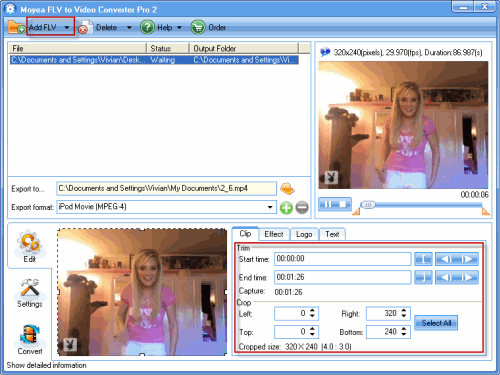
Which portable devices do you have, iPod, iPhone, PSP, Pocket PC, Creative Zen, Zune, Xbox, or Windows Mobile? Although Microsoft has announced to support playing Flash video contents from YouTube on some Mobile phones, there is still large amount of portable devices are not compatible to Flash videos, such as iPod, and iPhone. What can you do to enjoy them more steadily on your portable? It’s easy with FLV to Video Converter. All you need to do is to import the FLV files, do some simple edit settings, and convert to the right format. It supports not only normal FLV files, but also h.264 FLV files and F4V.
Besides, for online FLV files, you can use www.convertdirect.com to convert free. But it will take some time to wait for the converted file download link.
6. Upload and share the FLV online
Once you get your personalized FLV files edited with FLV editor, or your favorable FLV files downloaded with some FLV downloader, you can also upload and share the FLV online. You can both upload them to video-sharing sites like YouTube, and your own blog or website.
To upload the FLV to video-sharing sites, you can sign up to the site and upload with your account.
Replace mflvplayer.swf with the SWF file (the player) you generated. Here you can also type in the URL of the SWF, such as http://www.myhomepage.com/mflvplayer.swf.
The width="720" height="555" in black indicates the width and the height of your video.
You can resize the video by changing the value.
Last and most important, upload the generated SWF and FLV files to the same folder together with this page. And you can enjoy it on your webpage or blog!
7. Enjoy FLV on DVD
Watching videos online is fun, but temporary. If you’d like to save the nice memories for a longer time, you can burn the FLV to DVD and enjoy with DVD player in larger screen on your TV.
With FLV to Video Converter Pro, you can convert the FLV into format acceptable to DVD. All you need to do is to convert the FLV to MPEG, and burn the file to DVD with some free burner.
If you are having some business presentations and would like to add some video contents to make it more interesting, you will find the following stuff useful.
For PPT and PDF (Acrobat 8 and below), you can’t insert FLV contents directly. You must convert the FLV into other formats like WMV, MPEG, AVI, etc. And then, you will find it easy with the guides below:
If you are using Acrobat 9, you needn’t convert the FLV stuff into any other formats, since it supports FLV contents. Just insert the FLV directly. But you need to use Acrobat Reader 9 and above to play the FLV.
9. Make your own FLV video-sharing site
After enjoying all the nice FLVs online, have you ever thought of making a video-sharing site of your own? Now there are many SDK products which are really in need. If you have some knowledge of web design and server, you can make a YouTube of your own. If search online, you will find hundreds, here I recommend Flash Video MX SDK which is available to many programming languages, and two different interfaces: COM Components and Command Line.
10. Make your own FLV to video converting website
What’s more you can do with FLV videos? Have you ever though of converting the FLV videos to other format online or from local, and sell them to music and video fans? It’s not that difficult with FLV Converter SDK. You can not only convert FLV to popular videos for portable devices, but also convert FLV to audios. A most outstanding example of this SDK is www.convertdirect.com which helps convert thousands of FLVs to other video format.
Other than the above 10 things you can do with or to FLV, there are still many more things. As long as you are interested in FLV videos, and you are creative enough, you will find out the most interesting thing to do with FLV by yourself. Hope you enjoy the article and the time with FLV! Have fun!